Getting Started with AWS Batch for SageMaker Training jobs#
This notebook’s CI test result for us-west-2 is as follows. CI test results in other regions can be found at the end of the notebook.
This sample notebook will demonstrate how to submit some simple ‘hello world’ jobs to an AWS Batch job queue using a ModelTrainer. You can run any of the cells in this notebook interactively to experiment with using your queue. Batch will take care of ensuring your jobs run automatically as your service environment capacity becomes available.
Setup and Configure Training Job Variables#
We will need a single instance for a short duration for the sample jobs. Change any of the constant variables below to adjust the example to your liking.
INSTANCE_TYPE = "ml.g5.xlarge"
INSTANCE_COUNT = 1
MAX_RUN_TIME = 300
TRAINING_JOB_NAME = "hello-world-simple-job"
import logging

logging.basicConfig(
    level=logging.INFO, format="%(asctime)s - %(name)s - %(levelname)s - %(message)s"
)
logging.getLogger("botocore.client").setLevel(level=logging.WARN)
logger = logging.getLogger(__name__)

from sagemaker.core.helper.session_helper import Session
from sagemaker.core import image_uris

session = Session()

image_uri = image_uris.retrieve(
    framework="pytorch",
    region=session.boto_session.region_name,
    version="2.5",
    instance_type=INSTANCE_TYPE,
    image_scope="training",
)
Create Sample Resources#
The diagram belows shows the Batch resources we’ll create for this example.
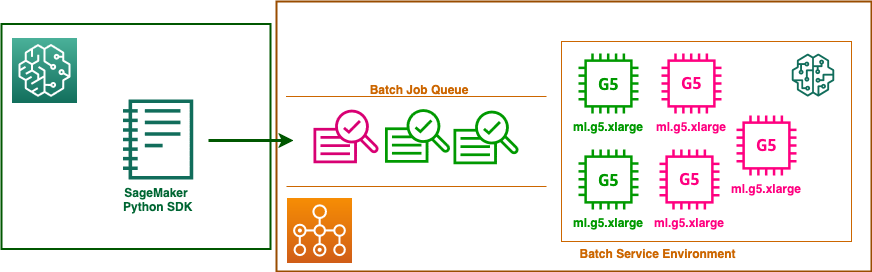
You can use Batch Console to create these resources, or you can run the cell below. The create_resources function below will skip creating any resources that already exist.
from sagemaker.train.aws_batch.boto_client import get_batch_boto_client
from utils.aws_batch_resource_management import AwsBatchResourceManager, create_resources

# This job queue name needs to match the Job Queue created in AWS Batch.
JOB_QUEUE_NAME = "my-sm-training-fifo-jq"
SERVICE_ENVIRONMENT_NAME = "my-sm-training-fifo-se"

# Create ServiceEnvironment and JobQueue
resource_manager = AwsBatchResourceManager(get_batch_boto_client())
resources = create_resources(
    resource_manager, JOB_QUEUE_NAME, SERVICE_ENVIRONMENT_NAME, max_capacity=1
)
Create Hello World Model Trainer#
Now that our resources are created, we’ll construct a simple ModelTrainer.
from sagemaker.train.model_trainer import ModelTrainer
from sagemaker.train.configs import SourceCode, Compute, StoppingCondition

source_code = SourceCode(command="echo 'Hello World'")

model_trainer = ModelTrainer(
    training_image=image_uri,
    source_code=source_code,
    base_job_name=TRAINING_JOB_NAME,
    compute=Compute(instance_type=INSTANCE_TYPE, instance_count=INSTANCE_COUNT),
    stopping_condition=StoppingCondition(max_runtime_in_seconds=MAX_RUN_TIME),
)
Create TrainingQueue object#
Using our queue is as easy as referring to it by name in the TrainingQueue contructor. The TrainingQueue class within the SageMaker Python SDK provides built in support for working with Batch queues.
from sagemaker.train.aws_batch.training_queue import TrainingQueue, TrainingQueuedJob

# Construct the queue object using the SageMaker Python SDK
queue = TrainingQueue(JOB_QUEUE_NAME)
logger.info(f"Using queue: {queue.queue_name}")
Submit Some Training Jobs#
Submitting your job to the queue is done by calling queue.submit. This particular job doesn’t require any data, but in general, data should be provided by specifying inputs.
# Submit first job
training_queued_job_1: TrainingQueuedJob = queue.submit(training_job=model_trainer, inputs=None)
logger.info(
    f"Submitted job '{training_queued_job_1.job_name}' to TrainingQueue '{queue.queue_name}'"
)

# Submit second job
training_queued_job_2: TrainingQueuedJob = queue.submit(training_job=model_trainer, inputs=None)
logger.info(
    f"Submitted job '{training_queued_job_2.job_name}' to TrainingQueue '{queue.queue_name}'"
)
Terminate a Job in the Queue#
This next cell shows how to terminate an in queue job.
logger.info(f"Terminating job: {training_queued_job_2.job_name}")
training_queued_job_2.terminate()
Monitor Job Status#
This next cell shows how to list the jobs that have been submitted to the TrainingQueue. The TrainingQueue can list jobs by status, and each job can be described individually for more details. Once a TrainingQueuedJob has reached the STARTING status, the logs can be printed from underlying SageMaker training job.
import time
from utils.log_helpers import logs_for_job


def list_jobs_in_training_queue(training_queue: TrainingQueue):
    """
    Lists all jobs in a TrainingQueue grouped by their status.

    This function retrieves jobs with different statuses (SUBMITTED, PENDING, RUNNABLE,
    SCHEDULED, STARTING, RUNNING, SUCCEEDED, FAILED) from the specified TrainingQueue
    and logs their names and current status.

    Args:
        training_queue (TrainingQueue): The TrainingQueue to query for jobs.

    Returns:
        None: This function doesn't return a value but logs job information.
    """
    submitted_jobs = training_queue.list_jobs(status="SUBMITTED")
    pending_jobs = training_queue.list_jobs(status="PENDING")
    runnable_jobs = training_queue.list_jobs(status="RUNNABLE")
    scheduled_jobs = training_queue.list_jobs(status="SCHEDULED")
    starting_jobs = training_queue.list_jobs(status="STARTING")
    running_jobs = training_queue.list_jobs(status="RUNNING")
    completed_jobs = training_queue.list_jobs(status="SUCCEEDED")
    failed_jobs = training_queue.list_jobs(status="FAILED")

    all_jobs = (
        submitted_jobs
        + pending_jobs
        + runnable_jobs
        + scheduled_jobs
        + starting_jobs
        + running_jobs
        + completed_jobs
        + failed_jobs
    )

    for job in all_jobs:
        job_status = job.describe().get("status", "")
        logger.info(f"Job : {job.job_name} is {job_status}")


def monitor_training_queued_job(job: TrainingQueuedJob):
    """
    Monitors a TrainingQueuedJob until it reaches an active or terminal state.

    This function continuously polls the status of the specified TrainingQueuedJob
    until it transitions to one of the following states: STARTING, RUNNING,
    SUCCEEDED, or FAILED. Once the job reaches one of these states, the function
    retrieves and displays the job's logs.

    Args:
        job (TrainingQueuedJob): The TrainingQueuedJob to monitor.

    Returns:
        None: This function doesn't return a value but displays job logs.
    """
    while True:
        job_status = job.describe().get("status", "")

        if job_status in {"STARTING", "RUNNING", "SUCCEEDED", "FAILED"}:
            break

        logger.info(f"Job : {job.job_name} is {job_status}")
        time.sleep(5)

    # Print training job logs
    model_trainer = job.get_model_trainer()
    logs_for_job(model_trainer, wait=True)


logger.info(f"Listing all jobs in queue '{queue.queue_name}'...")
list_jobs_in_training_queue(queue)

logger.info(f"Polling job status for '{training_queued_job_1.job_name}'")
monitor_training_queued_job(training_queued_job_1)
Optional: Delete AWS Batch Resources#
This shows how to delete the AWS Batch ServiceEnvironment and JobQueue. This step is completely optional, uncomment the code below to delete the resources created a few steps above.
from utils.aws_batch_resource_management import delete_resources

# delete_resources(resource_manager, resources)
Notebook CI Test Results#
This notebook was tested in multiple regions. The test results are as follows, except for us-west-2 which is shown at the top of the notebook.